You pick up your iPhone, press the power button, and the Apple logo appears. So far, everything looks normal.
But then nothing happens.
The screen stays on the Apple logo. Maybe it goes black and starts again. Or perhaps the phone has been sitting on the same screen for the last 20 minutes.
If you’ve got years of photos, contacts, messages or work files on that iPhone, the first concern probably isn’t the phone itself.
It’s whether you’re going to lose everything stored on it.
The good news is that an iPhone stuck on the Apple logo doesn’t automatically mean your data is gone. Sometimes it’s a temporary software problem. Other times, there’s an underlying hardware fault preventing the phone from starting properly.
The important thing is knowing what you can safely try before doing anything that might erase your data.
Why Does an iPhone Get Stuck on the Apple Logo?
When an iPhone starts, it runs through several checks before loading iOS and taking you to the Lock Screen.
If something interrupts that process, the phone may stop at the Apple logo or keep restarting.
Here are some common reasons.
1. An iOS update didn’t finish properly
Your iPhone might get stuck if an update is interrupted or something goes wrong during installation.
This can happen when the phone runs into a software error or doesn’t have enough available storage to complete the process.
2. The iPhone is running out of storage
A nearly full iPhone can sometimes have difficulty completing an update or starting properly.
This is especially worth considering if you were receiving storage warnings before the problem started.
Unfortunately, if the phone won’t boot, you can’t simply open Settings and delete a few apps.
3. A software problem is preventing startup
Occasionally, corrupted system files or other iOS problems can prevent the phone from loading normally.
In some cases, reinstalling iOS without erasing the phone may resolve the issue.
4. A hardware problem is affecting the startup process
Not every iPhone stuck on the Apple logo has a software problem.
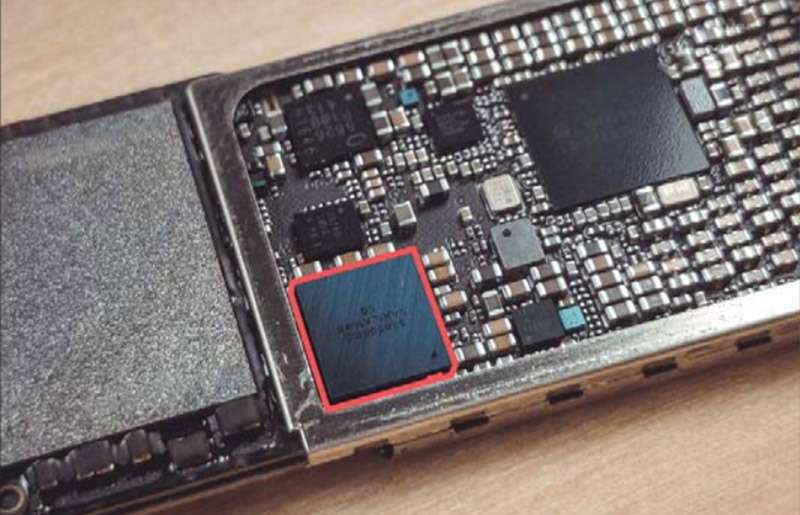
Faults involving internal components, liquid damage or previous physical damage can also interfere with startup.
If your iPhone was recently dropped, exposed to water or repaired, that information can be useful when diagnosing the problem.
5. The phone keeps restarting
Some iPhones don’t stay on the Apple logo continuously.
Instead, they show the logo, switch off and display it again.
This is commonly called a boot loop.
A boot loop can have software or hardware causes, so it’s important not to assume that restoring the phone will solve it.
First, Don’t Do Anything That Could Erase Your Data
Before trying to fix the problem, ask yourself one question:
Do I have a recent backup of this iPhone?
If your photos and files are backed up to iCloud or a computer, you have more flexibility when troubleshooting.
But if you don’t have a backup, be careful.
Some online guides recommend immediately restoring the iPhone through iTunes, Finder or another computer application.
The problem is that a full restore erases the data stored on the device.
If the photos, messages or files on your iPhone are important, don’t select Restore until you understand the consequences.
Start with the safer options below.
1. Check Whether the iPhone Is Still Updating
If the Apple logo appeared during an iOS update, look closely at the screen.
Is there a progress bar underneath the logo?
If there is, the phone may still be installing the update.
Depending on the update and the device, installation can take some time.
Avoid repeatedly forcing the phone to restart while the progress bar is moving.
If the progress bar hasn’t moved for at least an hour, Apple’s troubleshooting guidance recommends connecting the device to a computer and following the appropriate recovery steps.
If the iPhone is unusually hot, damaged or showing signs of battery swelling, stop using it and arrange a professional assessment instead.
2. Try a Force Restart
A force restart is usually the first practical step I’d recommend for an iPhone that has frozen on the Apple logo.
It doesn’t intentionally erase your photos, apps or other stored data.
The button combination depends on your iPhone model.
For iPhone 8 and newer models, including iPhones with Face ID
- Quickly press and release the Volume Up button.
- Quickly press and release the Volume Down button.
- Press and hold the Side button.
- Release it when the Apple logo appears again.
You may need to hold the Side button for more than 10 seconds.
For iPhone 7 and iPhone 7 Plus
Press and hold the Volume Down and Side buttons together until the Apple logo appears.
For iPhone 6s and earlier models
Press and hold the Home and Side or Top buttons together until the Apple logo appears.
Once the phone restarts, give it time to load.
If it reaches the Lock Screen, that’s a good sign.
If it returns to the Apple logo and gets stuck again, move on to the next step.
Technician’s tip: If a force restart doesn’t help after a proper attempt, don’t keep repeating it endlessly. The phone may need further diagnosis.
3. Check Whether Your iPhone Has a Backup
If the phone still won’t start, it’s worth checking whether your important data is already backed up.
If you use iCloud, you may be able to check whether photos, contacts and other synced information are available by signing in to your Apple Account from another trusted device.
Keep in mind that iCloud syncing and a full iCloud device backup are different things.
For example, photos synced through iCloud Photos may be accessible even when your iPhone won’t start.
But some app data and device settings may depend on an actual backup.
You can also check whether you’ve previously backed up the iPhone to a Mac or Windows computer.
Knowing what is safely backed up will help you decide how far to go with troubleshooting.
4. Try Recovery Mode — But Choose Update, Not Restore
If a force restart doesn’t work, recovery mode may help when the problem is caused by iOS.
This is where you need to be especially careful.
When you connect an iPhone in recovery mode to a computer, you may be offered two options:
Update and Restore.
They are not the same.
| Option | What it does | What happens to your data? |
|---|---|---|
| Update | Attempts to reinstall iOS | Designed to preserve personal data, but success isn’t guaranteed |
| Restore | Erases the device and reinstalls iOS | Deletes locally stored data |
If protecting your data is the priority, try Update first.
How to use recovery mode
You’ll need a Mac or Windows computer and a suitable USB cable.
On a Mac, use Finder. On supported Windows setups, use the Apple Devices app or iTunes where applicable.
For an iPhone 8 or newer:
- Connect the iPhone to the computer.
- Quickly press and release Volume Up.
- Quickly press and release Volume Down.
- Hold the Side button until the recovery mode screen appears.
- On the computer, select Update when offered.
The computer will attempt to download and reinstall iOS without erasing your personal data.
This may take some time.
If the download takes longer than approximately 15 minutes and the iPhone exits recovery mode, you may need to repeat the steps after the download completes.
Important: An Update attempt can fail. It isn’t a guarantee that your data will remain recoverable.
If the computer reports an error or the phone remains stuck, don’t automatically switch to Restore if you have important files that aren’t backed up.
5. What If Your Computer Doesn’t Recognise the iPhone?
Sometimes the iPhone doesn’t appear in Finder, Apple Devices or iTunes.
Before assuming the phone has a serious internal fault, check the basics.
Try a different USB cable that supports data transfer.
Connect the phone directly to the computer rather than through a USB hub.
Try another USB port.
Make sure the computer software is up to date.
If possible, test with another computer.
If the iPhone still isn’t detected, the issue could involve the charging or data connection, the device’s internal hardware or the phone’s current startup state.
At this point, further diagnosis may be needed.
6. What If Your iPhone Keeps Showing the Apple Logo Again and Again?
If the phone repeatedly displays the Apple logo, switches off and restarts, you’re probably dealing with a boot loop.
A boot loop doesn’t tell us exactly which component has failed.
Sometimes the cause is software-related.
Other times, a hardware issue prevents the phone from completing its startup checks.
If the phone was dropped, exposed to liquid or recently repaired, mention that when speaking with a technician.
Those details can help narrow down the possible causes.
I wouldn’t recommend repeatedly attempting software restores without understanding whether the issue is hardware-related, particularly when the phone contains important data.
7. Can You Recover Data From an iPhone Stuck on the Apple Logo?
This is usually the biggest concern.
And the answer is: sometimes, but it depends on why the phone isn’t starting.
Modern iPhones use hardware-backed encryption to protect stored information.
That means recovering data isn’t as simple as removing the storage chip and reading it through another device.
In many cases, the original phone needs to be made functional enough to start and unlock before its locally stored data can be accessed.
If the problem is a software fault, a successful non-erasing iOS update may allow the phone to boot normally.
If the issue involves damaged hardware, a technician may need to diagnose and repair the underlying fault before data access becomes possible.
However, not every damaged iPhone can be recovered.
If important files are involved, explain that data preservation is your first priority before authorising any repair or software procedure.
For more information, you can explore our data recovery and backup services in Auckland.
8. When Should You Stop Troubleshooting at Home?
There comes a point when trying more online fixes can create unnecessary risk.
I’d recommend seeking professional advice if:
- The iPhone remains stuck after a force restart.
- Recovery mode Update fails.
- The phone repeatedly restarts.
- The iPhone was recently dropped or exposed to liquid.
- Your computer doesn’t recognise the device.
- You have important photos or files without a backup.
- The phone is overheating, swollen or physically damaged.
The last two situations deserve particular care.
If you don’t have a backup, avoid any process that could erase the phone.
If the device shows signs of battery swelling or other physical danger, stop charging or using it.
9. How to Avoid Losing Your iPhone Data in the Future
Once your iPhone is working again, setting up a reliable backup should be one of your first priorities.
You don’t need a complicated system.
Turn on iCloud Backup
Go to:
Settings → Your Name → iCloud → iCloud Backup
Enable backup and check when the last successful backup occurred.
Keep your important photos synced or backed up
If you use iCloud Photos, check that syncing is enabled and your photos are actually available in iCloud.
Alternatively, keep another copy of important photos on a computer or separate storage device.
Keep enough free storage
Avoid running your iPhone with almost no available storage.
Having sufficient free space can help with normal app operation and future software updates.
Don’t ignore repeated restarts
If your iPhone occasionally restarts on its own, don’t wait until it stops working completely.
Back up your important data and investigate the problem.
iPhone Stuck on Apple Logo? Get Repair Help in South Auckland
If your iPhone is stuck on the Apple logo and you’ve already tried the basic troubleshooting steps, it’s worth having the device assessed before attempting anything that could erase your data.
At Erepair N Spares, we help customers with iPhone startup problems, charging faults, damaged screens and other hardware issues. Our repair shop is located in Papakura, South Auckland, and welcomes customers from Takanini, Manurewa, Manukau, Drury, Karaka, Pukekohe and surrounding areas.
If your phone contains important photos, contacts, or work files, let us know before any repair work begins.
You can learn more about our iPhone repair services in Auckland or contact us to discuss your device.
Visit us: Erepair N Spares, Unit 2, 182 Great South Road, Papakura, Auckland 2110.
Frequently Asked Questions
Will a force restart delete my iPhone data?
No. A normal force restart doesn’t intentionally erase your photos, apps or personal files. It simply forces the device to restart.
Does an iPhone stuck on the Apple logo mean the data is lost?
Not necessarily. Your data may still be stored on the device. Whether it can be accessed depends on the underlying problem and whether the phone can be made functional again.
Can I fix an iPhone stuck on the Apple logo without a computer?
You can try a force restart without a computer. If that doesn’t work, recovery mode troubleshooting generally requires a Mac or Windows computer.
Does recovery mode delete everything?
Entering recovery mode doesn’t automatically erase the phone. However, choosing Restore does erase locally stored data. The Update option attempts to reinstall iOS while preserving your information.
Why is my iPhone stuck on the Apple logo after an update?
Possible causes include an interrupted installation, software problems or insufficient available storage. Hardware issues can also produce similar symptoms.
Can a technician recover photos from an iPhone that won’t turn on?
Sometimes. Recovery depends on the condition of the device and whether its encrypted data can be accessed. There is no guarantee, especially if critical hardware is damaged.
Final Thoughts
An iPhone stuck on the Apple logo can be frustrating, particularly when you have important information stored on it.
But don’t assume the worst.
Start with a force restart. Check whether your data is backed up. If appropriate, try the recovery mode Update option before considering anything that erases the device.
If the phone still won’t start, getting the underlying problem diagnosed is usually more useful than trying random fixes.
The most important advice? If your data matters, don’t choose Restore unless you’re prepared for the possibility of losing everything that isn’t backed up.