There are few things more frustrating than pressing the power button on your MacBook and getting absolutely nothing in return—no Apple logo, no startup sound, and sometimes not even a charging indication. Whether you use your MacBook for work, study, business, or personal tasks, a device that suddenly won’t turn on can quickly become a serious problem.
The good news is that a MacBook that won’t turn on does not always mean there is a major hardware failure. The problem could be something as simple as a drained battery, a faulty charger, connected accessories, or a temporary software issue. However, if basic troubleshooting doesn’t help, professional MacBook Repair Auckland services can help identify the actual cause.
In this guide, we’ll explore some common reasons why a MacBook won’t turn on and what you can do about them.
1. Check the Charger and Power Connection
One of the first things you should check is the power supply.
If your MacBook battery is completely drained, the device may not respond immediately when you press the power button. Check that the charging cable is properly connected to both the MacBook and the power adapter. Also make sure the power outlet is working.
If possible, try another compatible charging cable, adapter, or power outlet. Apple also recommends checking the power cable and trying another compatible power source when a Mac doesn’t turn on.
If your MacBook only charges when the cable is positioned at a certain angle, the charging port or cable could be damaged. Professional inspection may be required.
2. Give Your MacBook Some Time to Charge
If the battery has been completely depleted, your MacBook may need some time before it can start.
Connect the charger securely and leave the MacBook connected for a while before trying to turn it on again.
If there is still no response after charging, the problem could involve the battery, charging port, charging circuit, or another internal component.
Erepair N Spares provides MacBook battery and charging-related repairs in Auckland, including charging-port and power-related diagnostics.
3. Unplug All Accessories
Sometimes, external devices can also obstruct the MacBook from starting up.
So, unplug the accessories, including:
- USB hubs
- External battery
- USB appliances
- Printers
- External monitor
- Memory card
- Any other devices plugged in
Then try turning on the MacBook again.
Apple specifically recommends disconnecting accessories when troubleshooting a Mac that won’t turn on.
If your MacBook starts normally after removing an accessory, reconnect your devices one at a time to identify which one may be causing the problem.
4. Execute a Power Cycle
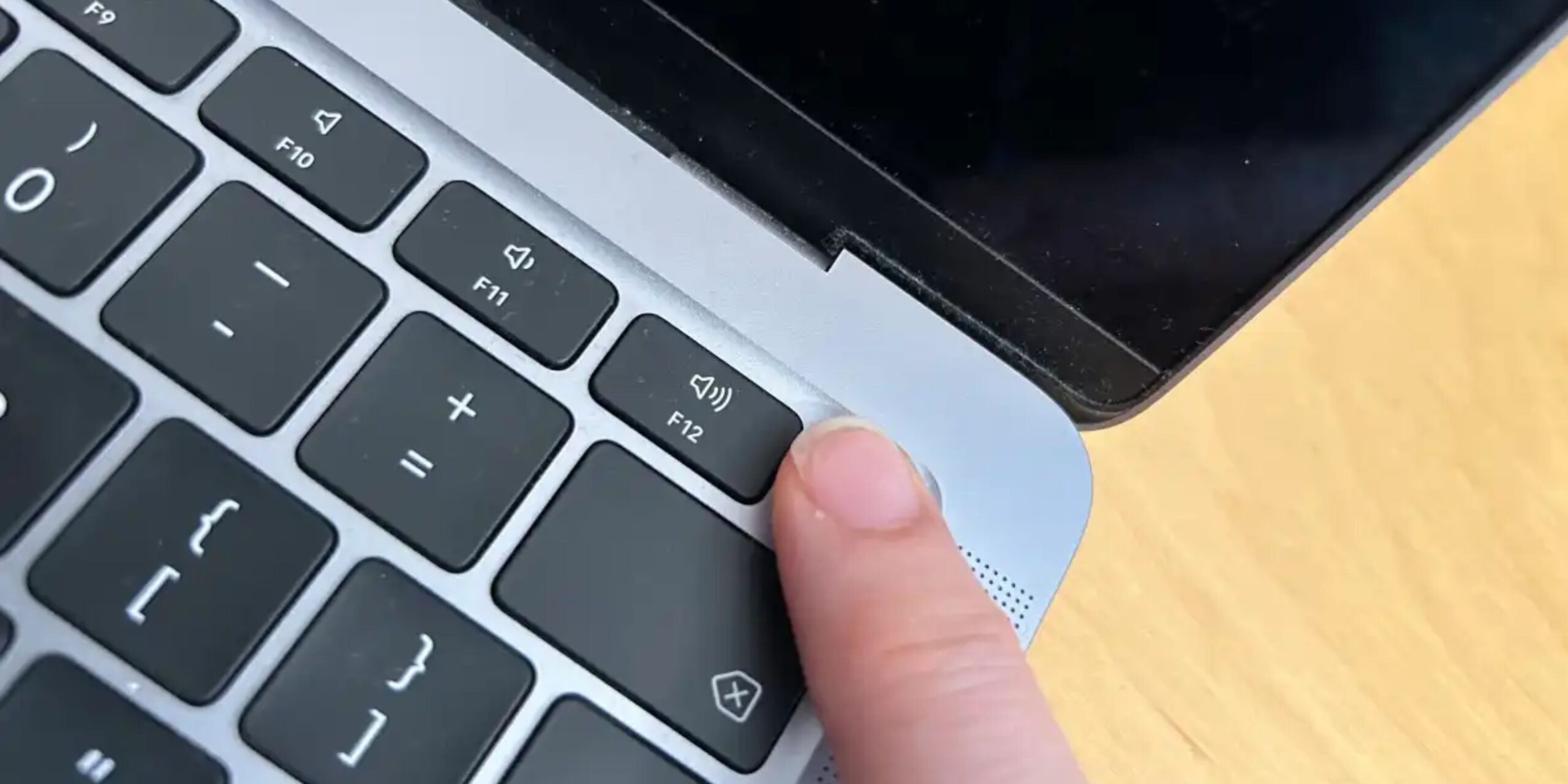
In case the MacBook seems entirely dead, press and hold down the power button for about ten seconds. The Touch key button acts as the power button on MacBook models equipped with this capability.
After you’ve disengaged the button, press it once more in its customary manner.
This is one of the initial steps recommended by Apple in solving an issue when the MacBook fails to turn on.
You shouldn’t engage in incessantly pressing the button or even try complicated methods if the MacBook is unresponsive.
5. Your MacBook May Be On, But the Screen Could Be the Problem
Sometimes the MacBook is actually running, but the display isn’t showing anything.
Look for signs of activity such as:
- Fan noise
- Keyboard or Touch Bar activity
- Charging light signals
- The trackpad is functioning
- An external display is connected
- Sounds made during the boot process
If you can tell that the MacBook is functioning, but the screen is still black, the problem may be related to the display or backlight, the display cable, or perhaps another part instead of the power supply.
6. Software or Startup Issues
A MacBook will power on, but there may be some problems with the proper startup of macOS.
Here are some examples of what you may experience:
• An Apple logo with nothing happening afterwards.
• A blinking question mark.
• A completely black screen.
• A system that keeps rebooting itself.
• An error icon.
• The MacBook stops functioning during startup.
These symptoms are different from a MacBook that has absolutely no signs of power.
Depending on the Mac model, macOS Recovery can provide options for troubleshooting startup and storage problems. However, if you are unsure what to do, avoid making changes that could put your data at risk.
7. Older Intel MacBooks May Have Power Management Issues
If you have an older Intel-based MacBook, a System Management Controller (SMC) reset can sometimes help with certain power-related problems.
Apple notes that SMC reset procedures apply to Intel-based Macs; Apple silicon Macs do not require the same SMC reset procedure.
Because the correct procedure depends on the Mac model, it is important to follow instructions specifically intended for your device.
8. Battery Failure Could Be the Cause
MacBook batteries naturally lose capacity over time.
A failing battery may cause symptoms such as:
- Very short battery life
- Unexpected shutdowns
- MacBook refusing to start without the charger
- Rapid battery drain
- Swollen battery
- Charging problems
A swollen battery should not be ignored. Continuing to use a device with a damaged or swollen battery can create additional safety and hardware concerns.
Professional battery inspection and replacement is recommended if you suspect battery failure. Erepair N Spares lists battery replacement among its MacBook repair services.
9. Liquid Damage Can Stop a MacBook From Turning On
Accidental spills are another common cause of MacBook problems.
Coffee, water, juice and other liquids can damage internal components. A MacBook that stops working shortly after liquid exposure may have damage affecting the keyboard, charging system, logic board or other components.
If liquid has been spilled on your MacBook, avoid repeatedly trying to power it on. Continued electrical activity can potentially worsen internal damage.
Professional liquid-damage diagnostics are a safer option. Erepair N Spares provides water and liquid damage repair services for MacBook models.
10. Logic Board Problems
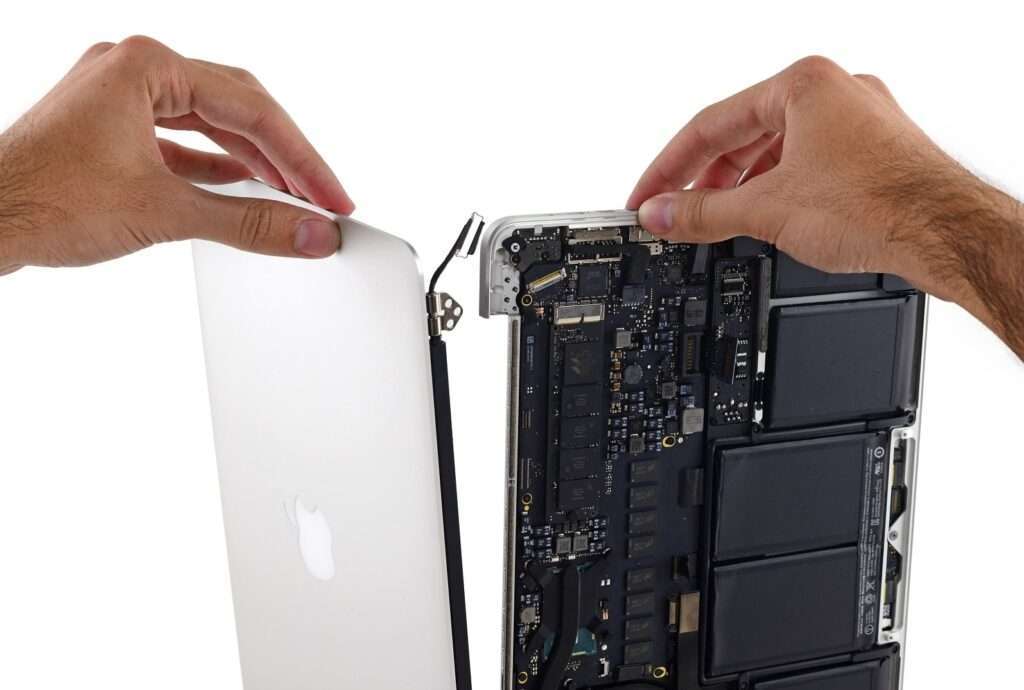
If the MacBook has no obvious charging, display, battery or software issue, the logic board could be involved.
Logic board problems can result in:
- No power
- Unexpected shutdowns
- Boot failure
- Charging failure
- Display failure
- Kernel breakdown or other hardware problems.
Most of these problems will require special diagnostic equipment and should not be fixed without the proper technical knowledge and expertise.
Erepair N Spares provides a service for MacBook logic board repair and diagnostics for any problems related to the lack of power and any other hardware issues.
When Should You Contact a MacBook Repair Professional?
If you’ve checked the charger, disconnected accessories, attempted a power cycle, and your MacBook still won’t turn on, professional diagnosis may be the best next step.
You should especially consider professional repair if:
- Your MacBook has fallen.
- It has suffered water damage.
- The charging port has become damaged.
- The battery appears to be bulging.
- The screen is still black, but the MacBook seems to be powered on.
- The MacBook shuts down continuously.
- You smell something unusual from the device.
- There are no signs of power after basic troubleshooting.
A technician can inspect the MacBook and determine whether the problem is related to the battery, charging system, display, logic board, or another component.
Why Choose Erepair N Spares for MacBook Repair Auckland?
Erepair N Spares provides MacBook repair services covering common issues such as screen problems, battery replacement, keyboard repairs, charging issues, water damage and logic board problems.
The company also offers free diagnosis at its Papakura location, making it easier to identify the cause before deciding on a repair.
If your MacBook won’t turn on, getting the problem professionally diagnosed can help you avoid unnecessary part replacements and give you a clearer idea of the repair required.
Conclusion
There are many reasons for a MacBook to not power up, ranging from something simple, like a dead battery or an incompatible charger, to something more serious like a hardware issue. Remember to take it step by step when having issues with your MacBook: check the power supply, charge the device, remove all devices, and power cycle the MacBook. If this doesn’t help, consider professional assistance instead of trying to fix the laptop yourself. If you’re looking for MacBook repair in Auckland, you should consider Erepair N Spares. We help you diagnose and fix a variety of MacBook problems, no matter their nature.